

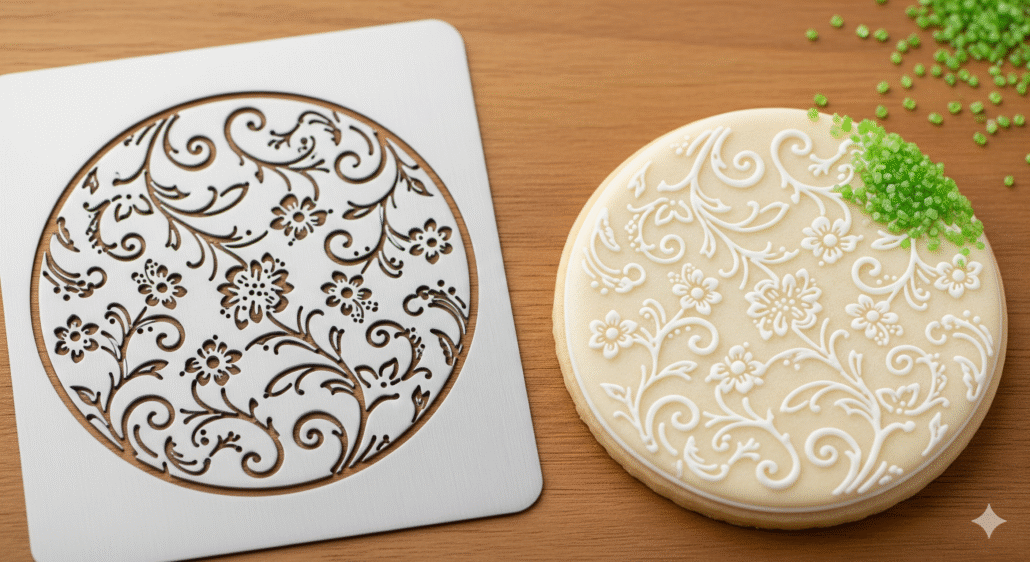
From Dust Collector to Dough Decorator: Taming the Silhouette Cameo for Perfect Baking Stencils
Have a piece of craft tech sitting in a corner, collecting dust? For me, it was a Silhouette Cameo 3. I used it exactly once a couple of years ago, got immediately frustrated, and banished it to the bottom of my printer stand.
But this year, inspiration struck. As I prepped for my annual pumpkin roll bake, I pictured the intricate patterns I usually pipe on top. What if I could use stencils instead for a cleaner, more professional look? And isn’t that one of the main functions of a Cameo machine? 🤔
It was time to give it a second chance.
The (Re)Learning Curve: Materials, Mats, and Mishaps
I dusted off the machine, plugged it in, and was pleasantly surprised to discover it had Bluetooth—a feature I had completely forgotten about. Even better, as a Chromebook user, I was thrilled to see that Silhouette offers a web-based version of their Studio software! Paired with my go-to online image editor, Photopea.com, I was ready to go.
Or so I thought. The first real hurdle was the stencil material itself.
- Attempt #1: I bought a pack of official stencil plastic that was far too thin and flimsy. Even when I managed a decent cut, the stencil would bunch up and warp when I tried to use it.
- Attempt #2: My next material was apparently too thick. I wasted the entire pack experimenting with settings. Even with the blade at its deepest setting, maximum force, and multiple passes, I still had to finish the job with an X-acto knife, and intricate details were a complete no-go.
Frustrated, I started searching online and stumbled upon a crafting forum where someone mentioned using plastic file dividers from the dollar store. It sounded too good to be true, but on my next trip to Walmart, I found a pack of Pen+Gear 8-Tab Dividers in the school supply aisle for just a couple of bucks.
At the same time, I learned another crucial lesson: the cutting mat matters. It surprised me how much a stronger adhesive improved the quality of the cuts. I now exclusively use a “strong grip” cutting mat which holds the file divider material perfectly in place.
My Step-by-Step Guide to Perfect Stencils
After a lot of trial and error, I’ve finally landed on a process that works every time. Here’s how you can do it too.
Step 1: Prep Your Material
The file dividers have tabs that will interfere with the machine’s rollers and punch-holes along the side.
- First, snip the tabs off with a pair of scissors.
- The punch-holes remain, so just remember to avoid that area when you lay out your design in the software.
- After trimming, the usable area is about 9 inches wide by 11 inches tall.
Step 2: Set Up Your Digital Canvas
In the Silhouette Studio web app, go to the page setup panel and set your media size to match the material dimensions (9″ x 11″).
Step 3: Create and Refine Your Design
I used Google Gemini to generate some leaf designs for my fall theme. Once I had a design I liked, I brought it into Photopea for a few tweaks.
- Separate layers: If your design has inner and outer cutouts, separate them into different layers. This gives you more control.
- Create contrast: The trace tool in Silhouette Studio works best with high contrast. I made sure the design was pure black and placed it on a solid white background (not transparent).
Step 4: The Tracing Trick for Perfect Alignment 💡
This next step is a game-changer that will save you a huge headache.
When you use the trace tool in Silhouette Studio, it creates cut lines and then often resizes the resulting shape to fill the page. If you have multiple layers (like an outer leaf shape and inner veins), they will be resized differently, and you’ll never get them to line up again.
The solution: Before exporting from Photopea, add a tiny black square to the top-left and bottom-right corners of your canvas on every single layer.
Now, when you trace each layer in Silhouette Studio, the corner squares ensure that the resulting cut paths have the exact same dimensions. You can then perfectly align them on top of each other. The little squares can just be ignored or weeded out of your final stencil.
Step 5: Dial In Your Settings and Cut!
With the design traced and aligned, it’s time to cut.
- Firmly press your trimmed file divider onto the strong grip cutting mat, aligning it with the grid lines.
- Load the mat into the machine.
- In Silhouette Studio, click “Send.”
These are the settings that give me a perfect, clean cut every single time:
- Material: Stencil Material
- Blade: Autoblade
- Speed: 2
- Blade Depth: 10
- Force: 33
- Passes: 1
And that’s it! The machine makes one clean pass, and I have a durable, reusable stencil ready for my pumpkin roll. What started as a frustrating dust collector has become one of my favorite custom baking tools
